How to Connect Driive and CompanyCam (Step-by-Step Setup Guide)

Most home service businesses have a version of the same problem. A homeowner books a free estimate. Your estimator drives out. They pull up to the house, knock on the door, and ask the question that wastes ten minutes before anyone talks about the job: "So what are we looking at today?"
The homeowner already explained it when they booked. They described the issue, maybe took a few photos on their phone, maybe sent some over text. That information evaporated somewhere between the booking form and your estimator's arrival. So everyone starts from scratch.
The Driive and CompanyCam integration closes that gap. Here's the exact setup, step by step.
Step 1: Add a Photo Upload Question to Your Appointment Type
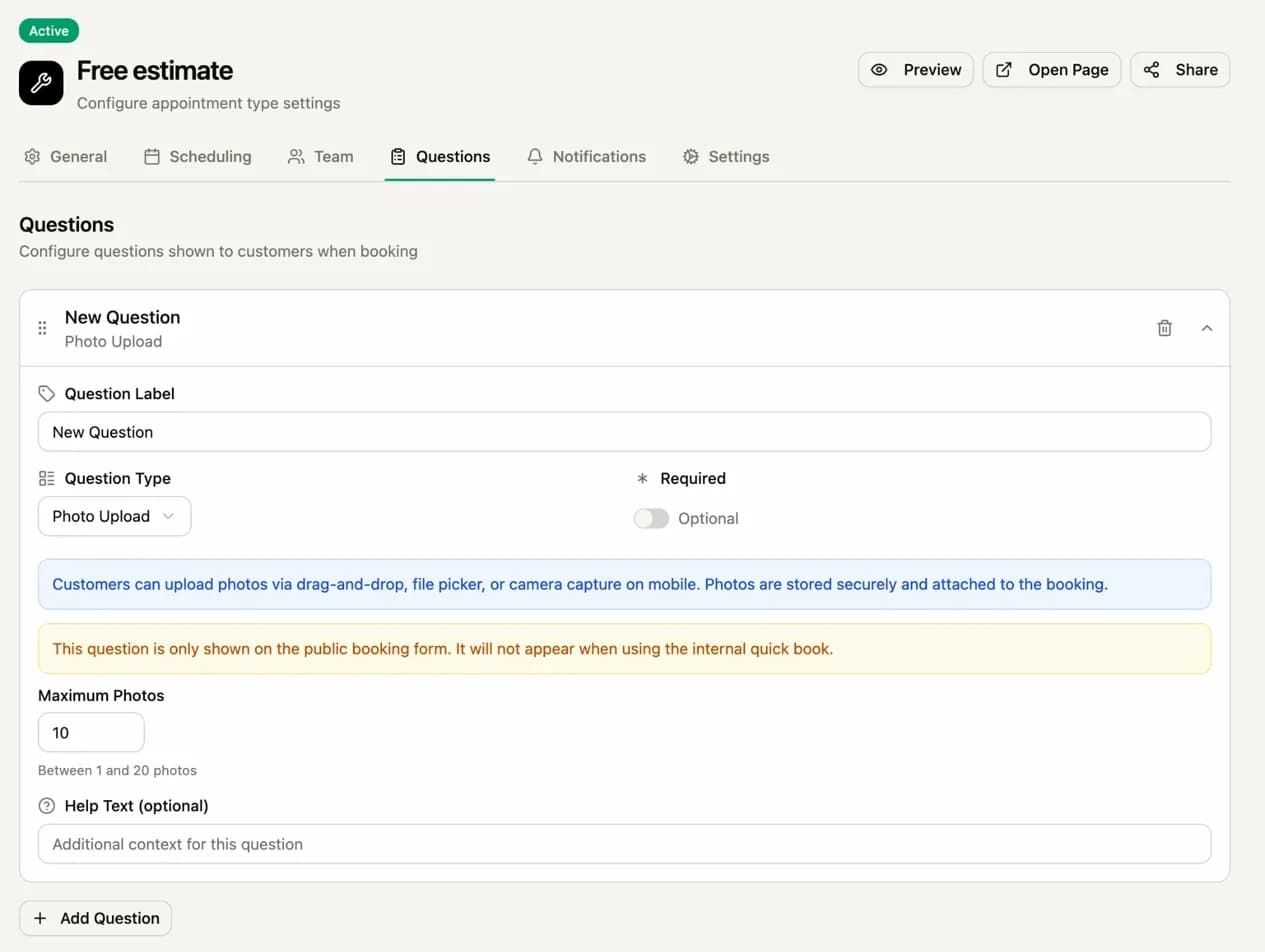
In Driive, go to Setup in the left nav, then Appointment Types. Open the appointment type you want to add photos to (for example, your Free Estimate booking type) and click into the Questions tab.
Click Add Question at the bottom of the page. Give the question a label, then set the Question Type dropdown to Photo Upload. You can set a maximum photo count between 1 and 20. Add help text in the optional field to guide customers on what to photograph: the damaged area, the equipment, the room, whatever your estimators actually need to see before they arrive.
The Required toggle is optional. If you want photos before you commit to the appointment, turn it on. If photos are helpful but not mandatory, leave it off.
Important: the photo upload question only appears on the public booking form. It will not show when you use the internal quick book feature.
Once a customer submits their booking with photos attached, those photos will be visible in the Details tab of the appointment card inside Driive. Your office team and your estimators can review them before anyone leaves the building.
Step 2: Connect Your CompanyCam Account
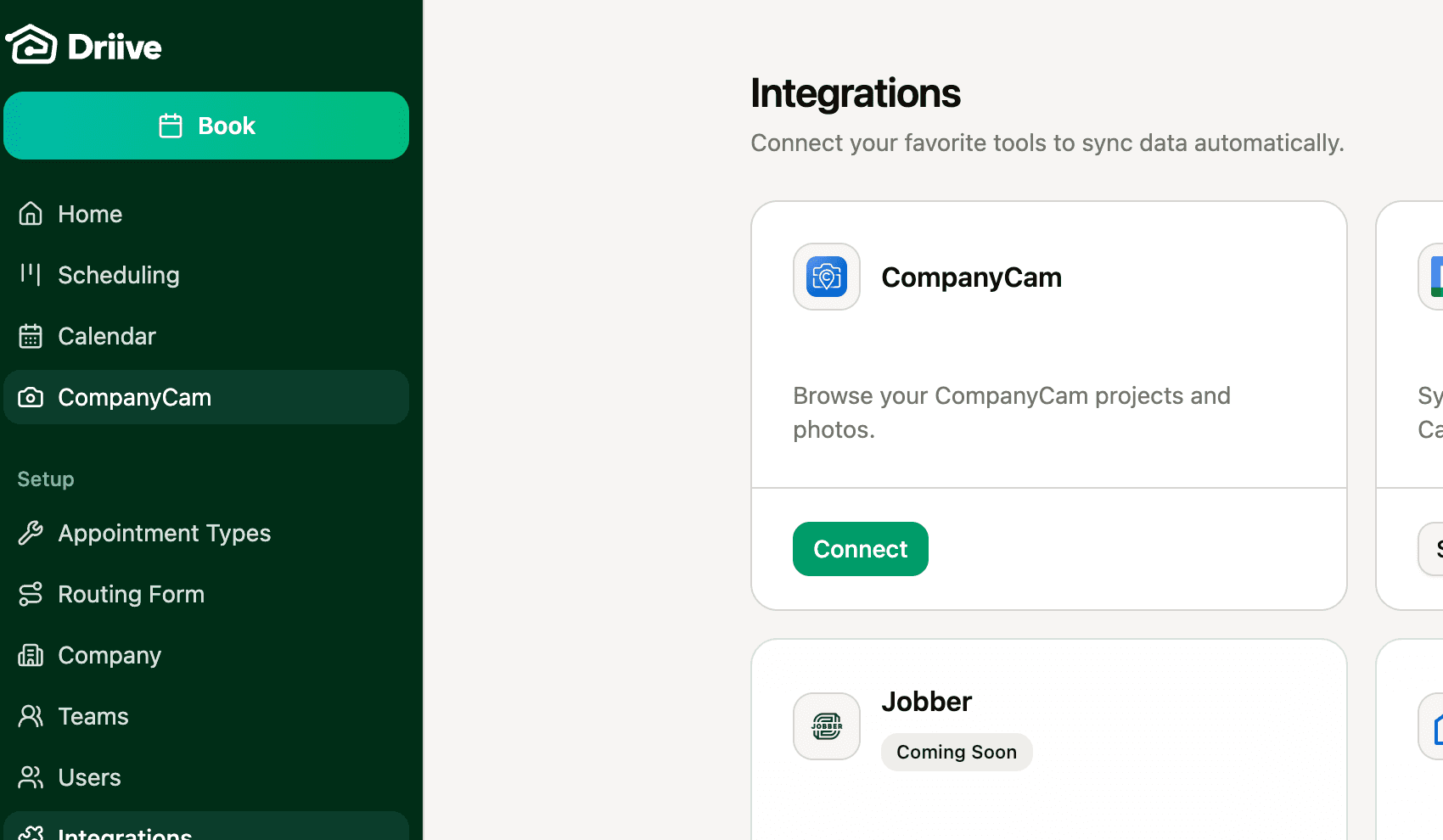
In the Driive left nav, click Integrations near the bottom of the Setup section. You'll see a CompanyCam card on the integrations page. Click the green Connect button and log in with your CompanyCam credentials.
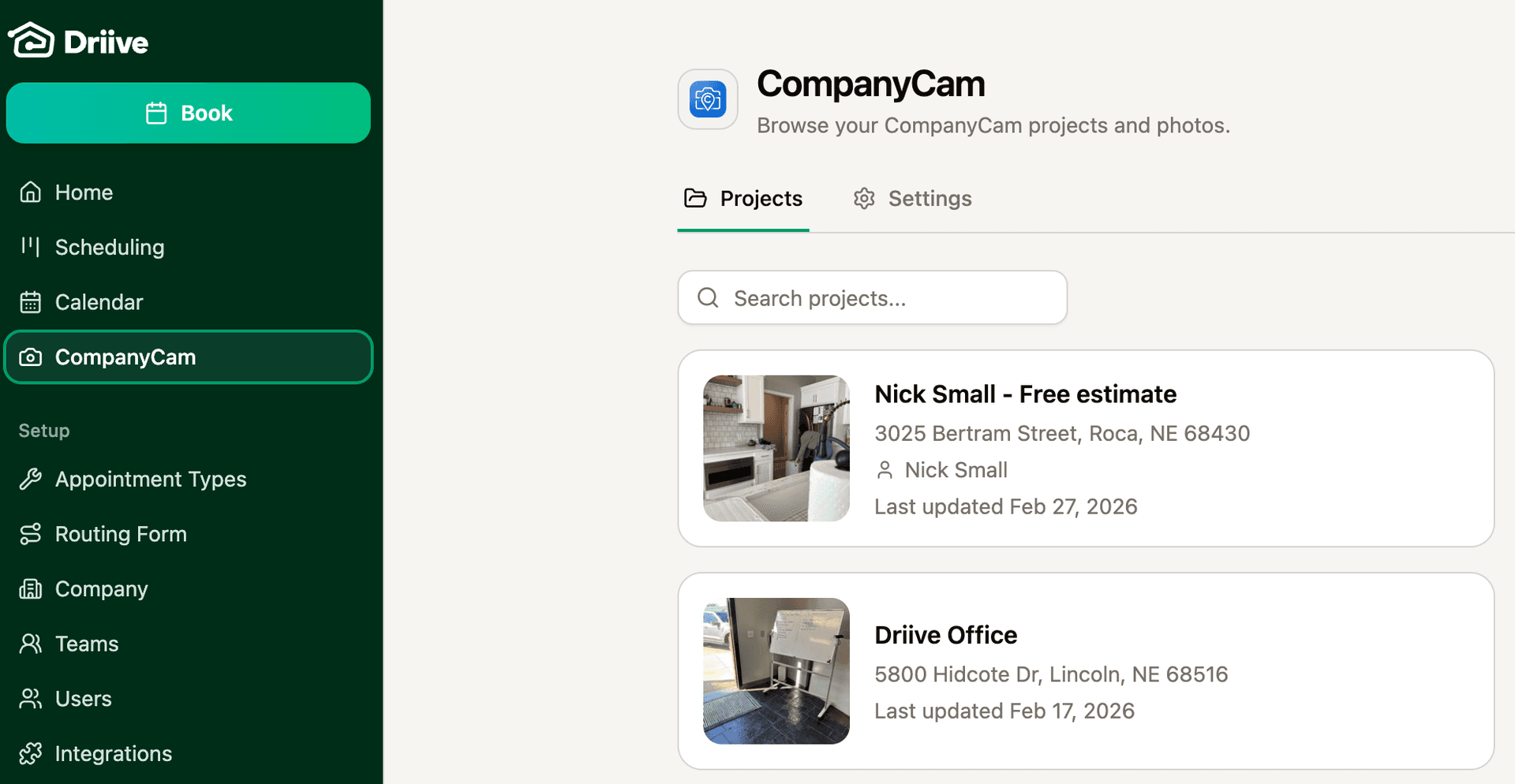
That's the entire setup process. Once connected, a CompanyCam option appears in your left nav. From there, you can browse all your CompanyCam projects directly inside Driive without opening a second tab. Each project shows the project name, address, assigned team member, and the last updated date. There's also a search bar at the top if you're looking for a specific project.
Jobber is listed on the integrations page as Coming Soon, so if you're running Driive alongside Jobber, that connection is on the way.
Step 3: Browse CompanyCam Projects Inside Driive
The workflow that's getting the best results for teams right now is straightforward: when a new lead books their first appointment through Driive, someone on the team creates a new CompanyCam project for that job.
Inside the CompanyCam section in Driive, you can browse all your projects with thumbnails, addresses, and last-updated dates. Click on any project to open the project detail view with the project name, address, contact info including email and phone number, and Appointments and Photos tabs.
If the homeowner submitted photos with their booking form, those are already in your Driive appointment card under Details, ready to be referenced or added to the new CompanyCam project before the estimate. You can also click Open in CompanyCam from the project detail view to jump directly to the full project in CompanyCam.
Step 4: Link a CompanyCam Project to an Appointment
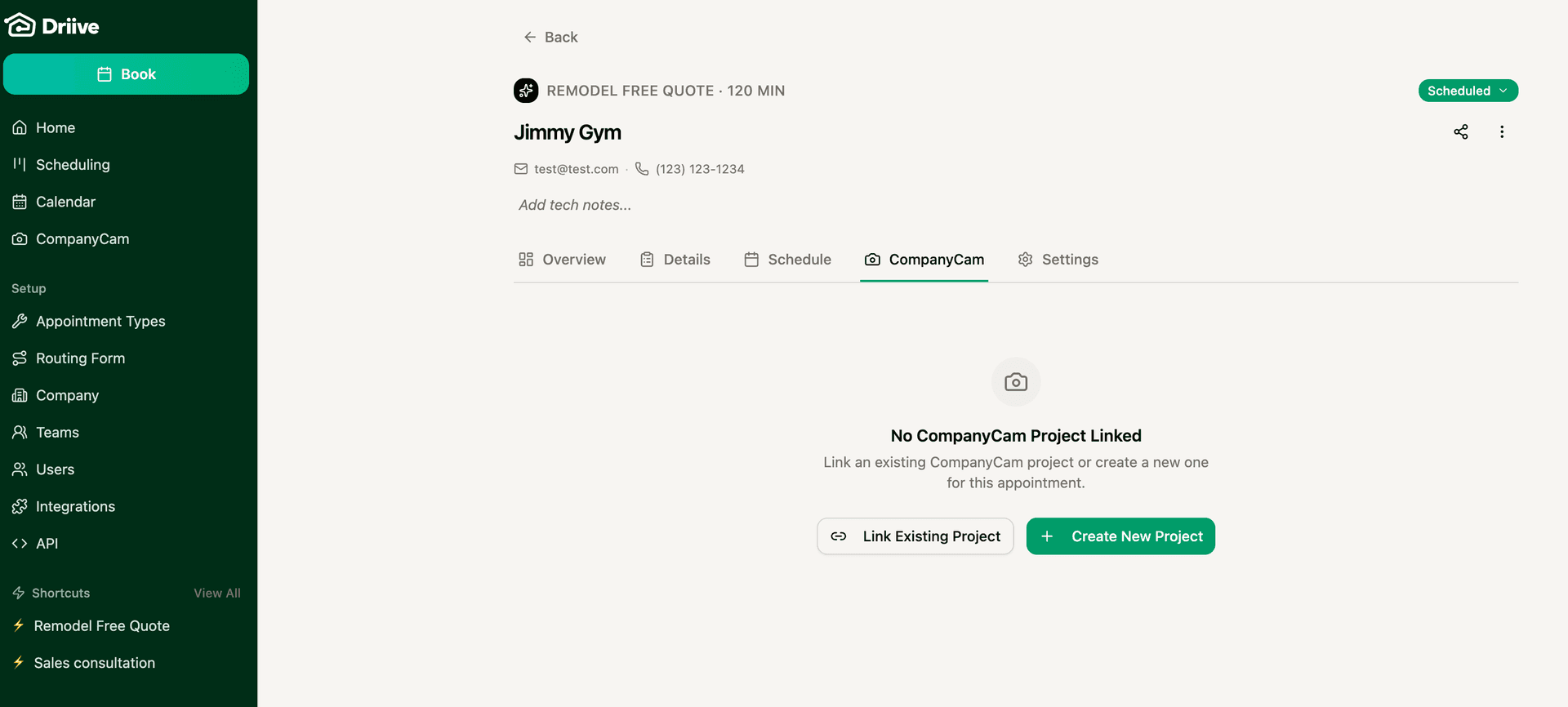
Inside any appointment in Driive, click on the CompanyCam tab. If no project is linked yet, you'll see two options: Link Existing Project or Create New Project.
Link Existing Project is useful when a homeowner already has a CompanyCam project from a previous job or estimate. Create New Project starts a fresh project tied to this appointment. Once a project is linked, your team can see photos and field updates from CompanyCam directly in the appointment without leaving Driive.
The appointment overview also shows you key context at a glance: the scheduled date and time, assigned team member, the job location with a Directions link, and the drive time and distance from the previous appointment. That last piece is Driive's drive-time logic working in the background, helping you understand how the schedule is actually laid out geographically, not just chronologically.
Step 5: Book Appointments Directly from a CompanyCam Project
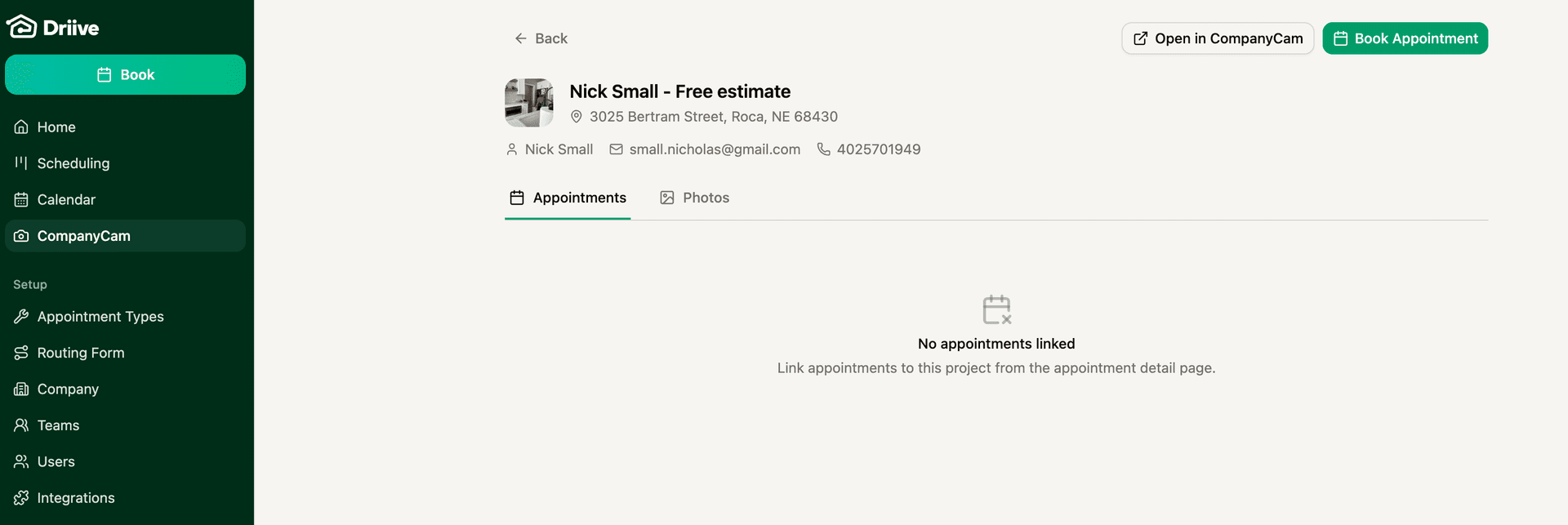
Inside any CompanyCam project view in Driive, there's a Book Appointment button in the top right corner. If a job needs a follow-up visit, a second estimate, or a scheduled installation after the initial appointment, you can book it directly from the project without re-entering the customer's information.
This closes the loop. The customer's contact details, address, and project history are already there. You're booking the next step, not starting over.
Why This Works
This integration is not an official partnership yet. But the teams using it are seeing a consistent shift in how their estimate process runs.
When your sales team already has photos before the first visit, a few things change. Estimates move faster because the visual discovery phase is already done. Customers feel heard because someone actually looked at what they sent. Your estimator walks in informed, which raises their credibility before they say a word. And the project documentation record starts at first contact, not when someone finally shows up on site with a phone.
Field service businesses win or lose estimates on trust and preparation. Starting the conversation with "I already saw the photos you shared" is a different opening than "So what are we looking at today?" One of those openings closes more jobs.
To set up photo upload questions and connect CompanyCam to your Driive account, get started at getdriive.com.
Ready to transform your booking?
Join hundreds of field service teams already using Driive to win more jobs, reduce drive time, and automate their booking.
Cancel anytime. No commitment. No setup fees.